# UberFlip

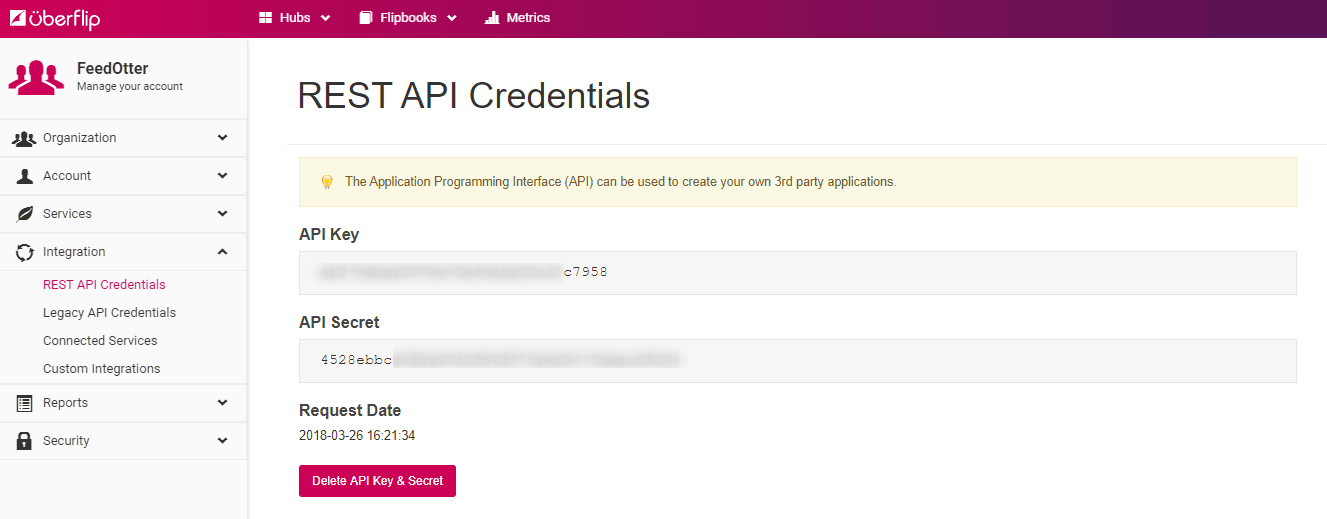
1. In **UberFlip**, navigate to **Account Settings** > **Integration** > **REST API Credentials**.
2. Copy your **API Key** and **API Secret**.

<div align="left"><figure><img src="https://www.feedotter.com/wp-content/uploads/2020/04/uberflip-api-credentials.png" alt=""><figcaption><p>Copy your API Key and API Secret to save these in your FeedOtter account.</p></figcaption></figure></div>

Copy your API Key and API Secret to a memorable place.  We will paste these into your FeedOtter account.

3. Go to your **FeedOtter account** > **Settings** > **Content Sources** > select **New Content Source**.
4. Under **Platform** select **UberFlip** and give the content source a **name**.
5. Paste your **API Key** and **API Secret** in the boxes provided.
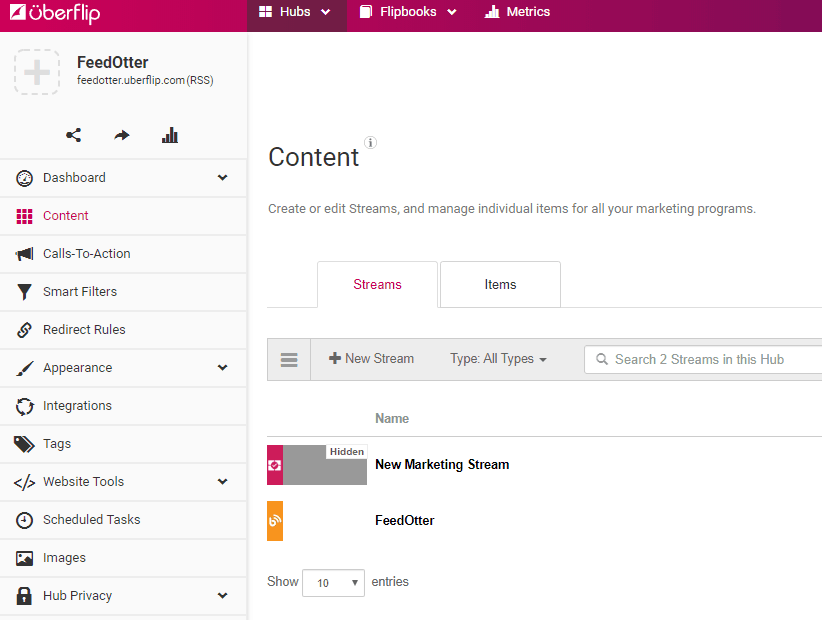
6. Click **Connect**. Then select which UberFlip stream you wish to use in FeedOtter.
7. Click **Save**.

You'll then be able to choose your UberFlip content to pull from when creating your newsletters.

<div align="left"><figure><img src="https://2086102864-files.gitbook.io/~/files/v0/b/gitbook-x-prod.appspot.com/o/spaces%2FIdHBGk8cqznUpEqm5g1U%2Fuploads%2Fa93EWbsnbxgQnvVALZTT%2Fimage.png?alt=media&#x26;token=8c81feed-3144-4b8f-a9e8-9b1b44a0d31f" alt=""><figcaption><p>Add your UberFlip details to connect to FeedOtter.</p></figcaption></figure></div>

**More than one stream?** No problem, you can clone this content source and map multiple streams into your FeedOtter account. Now everything stays organized and you can route content to the right emails.

<div align="left"><figure><img src="https://www.feedotter.com/wp-content/uploads/2020/04/UberFlip-Select-a-Stream.png" alt=""><figcaption><p>UberFlip content streams available to connect to FeedOtter.</p></figcaption></figure></div>