> For the complete documentation index, see [llms.txt](https://docs.feedotter.com/llms.txt). Markdown versions of documentation pages are available by appending `.md` to page URLs; this page is available as [Markdown](https://docs.feedotter.com/custom-template-guide/overview/use-an-esp-template/marketo-export-guide.md).
# Marketo Export Guide
Feedotter supports unlimited newsletter designs via our flexible custom HTML email system. Using an email coded with Marketo's unique syntax requires a couple additional steps to ensure all the necessary style/asset properties are exported.
Follow the steps below to export a Marketo email for use with Feedotter.
#### Create An Email Asset in Marketo
1. Log in to Marketo.
2. Go to Marketing Activities.
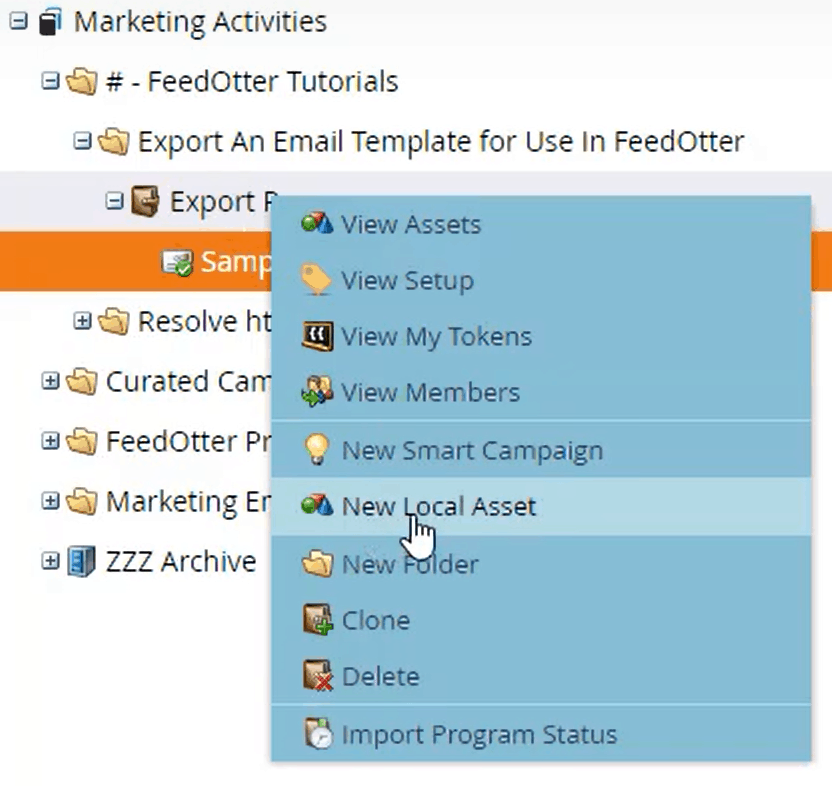
3. In the folder of your choosing, right-click and select New Local Asset > Email
Select the Marketo template you wish to use as the basis for your FeedOtter email.
Review the template. Create sections and blocks containing placeholder content for the Title, Image, Description, and CTA / Read More links and buttons you wish to have in your email.
When the email and placeholder content looks as desired Save and Approve the email.
#### Download The Email HTML File From Marketo
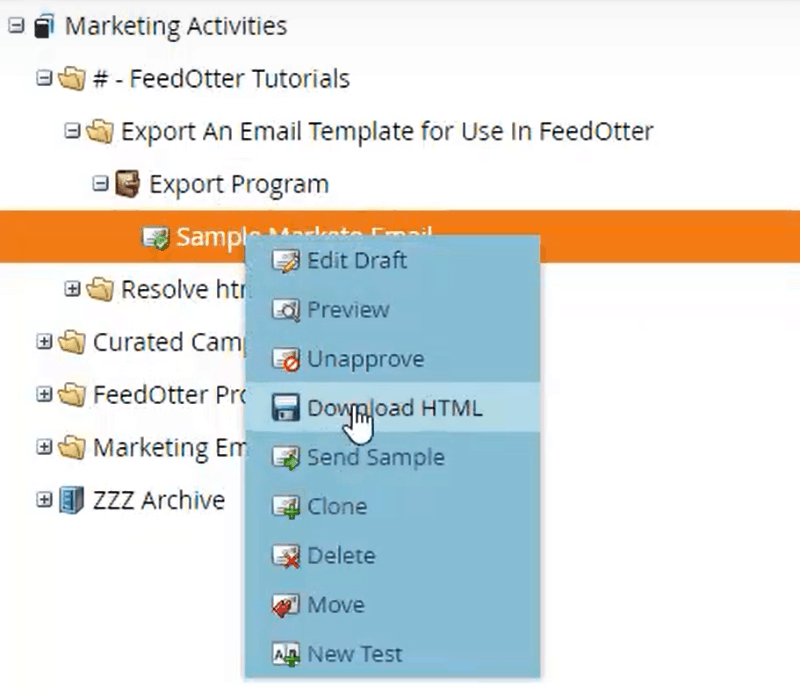
THE MOST IMPORTANT PART: You must download the HTML file from the Marketing Activities Tree. Even though there is an option to download from the Design Studio and Edit Email screen, this will NOT give you the compiled version of the email, as there will be a lot of Marketo markup and additional Marketo variables that are not usable by FeedOtter.
1. In Marketing Activities, right-click the email you just created and select DOWNLOAD HTML.
#### Send Us Your Template File
Now you’re all set! Once you’ve downloaded the HTML file from the Marketing Activities tab, you can send it to the FeedOtter team to import into your account.
Email your template file to us at or via the [import request form](https://www.feedotter.com/import).
If you have any questions or concerns, feel free to email us or submit a help ticket from your FeedOtter account.
#### Video Tutorial
Prefer a video walkthrough of this process?
{% embed url="" %}
Video walkthrough of exporting your Marketo template for FeedOtter.
{% endembed %}