# Test, Review, and Publish your curated email newsletter
### **Test – Send A Sample Email Newsletter**
An easy and quick way to test that your new email newsletter looks the way you want is to send yourself a quick proof.
Click on the **Test Tube** icon in the upper-right. A popup will appear, asking for your email address. Click **Send Test** to send the proof.
{% hint style="info" %}
You can include up to 3 email addresses on a proof. Each email address should be separated with a comma.
{% endhint %}
{% hint style="warning" %}
**Test emails are sent from the FeedOtter application*****,*** **not your integrated ESP.** This proof is intended for testing the look and structural success of the email. Marketing automation and ESP features, tokens, or unsubscribe links will not work or render.
{% endhint %}
***Helpful Tip:** Use the proof feature to send your new email to a tool like Litmus or Email on Acid to confirm your email newsletter looks and renders great.*
### **Collaborate – Share A Link**
We have made it easy to share your new email’s look with other team members. Click on the **moving box** icon. A new browser tab will appear showing a landing page where your email can be viewed. Copy this URL from your browser or click on the “Copy to Clipboard” link and chat this link to team members for email feedback and approval.
### **Publish**
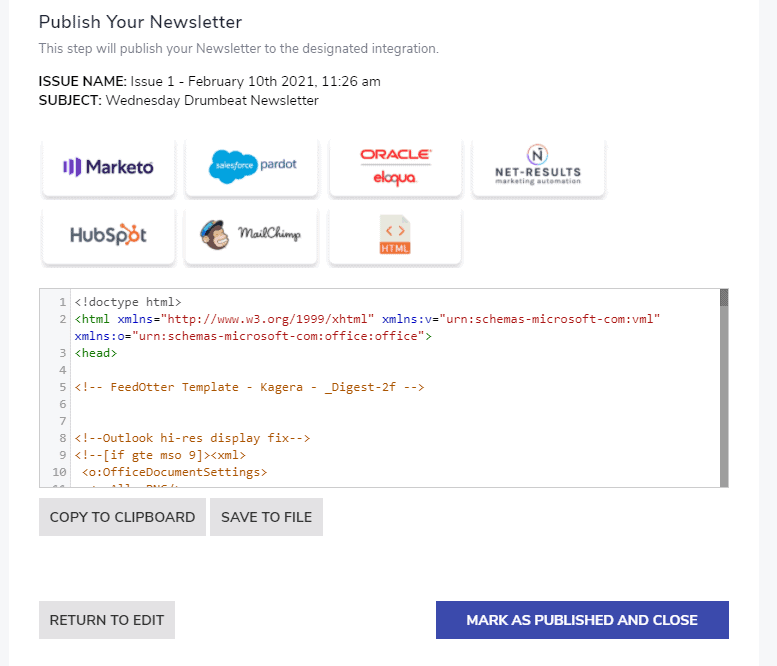
When you are happy with the content and display of your email you can click the green **Publish** button. What happens next will depend on the integration you setup in your newsletter defaults.
*Here is a breakdown of how the integration targets handle published curated emails:*
**Marketo**\
Select a parent Marketo folder or program. FeedOtter will create an Email Program and Email ready to send from Marketo.
**Pardot**\
Define a Pardot campaign, lists, and suppression lists. Then select a date and time. Your email will become scheduled in Pardot and appear on your Pardot marketing calendar and in Schedule Emails.
**Eloqua**\
Select your email groups, header, footer, and segments. Select a date/time. FeedOtter will create a new Simple Email object that is scheduled to send a new Email at your specified time.
**MailChimp**\
Select a folder, lists, segments and a send date/time. FeedOtter will create a new email in MailChimp scheduled to send at the time you specify.
**HubSpot**\
When you click publish your email will populate in **Hubspot** > **Marketing** > **Design Manager.** To send in HubSpot, create a new **Marketing** > **Email** > **Regular** and view your Custom templates. Your email will be available to select for sending.
If you don’t use one of the ESP or marketing automation tools mentioned above or want to perform additional testing you can always grab/download the raw HTML of the email.
{% hint style="info" %}
For more information on Publishing, [click here.](/curated-newsletters/publishing.md)
{% endhint %}
That’s it! You are now ready to send emails using the curated email newsletter feature.
Get to work or dig into some advanced features:
* [Advanced – How to Bookmark a Page Using the Content Queue Bookmark](https://www.feedotter.com/articles/how-to-bookmark-a-page-content-queue-bookmark/)
* [Advanced – Dynamic Subject Lines](https://www.feedotter.com/articles/dynamic-subject-lines/)
---
# Agent Instructions: Querying This Documentation
If you need additional information that is not directly available in this page, you can query the documentation dynamically by asking a question.
Perform an HTTP GET request on the current page URL with the `ask` query parameter:
```
GET https://docs.feedotter.com/curated-newsletters/getting-started/test-review-and-publish-your-curated-email-newsletter.md?ask=
```
The question should be specific, self-contained, and written in natural language.
The response will contain a direct answer to the question and relevant excerpts and sources from the documentation.
Use this mechanism when the answer is not explicitly present in the current page, you need clarification or additional context, or you want to retrieve related documentation sections.